

🎨 How To: Whitelabel The Payment Experience
🎨 Customize the Coinflow Pre-built UI to match your branding guidelines.
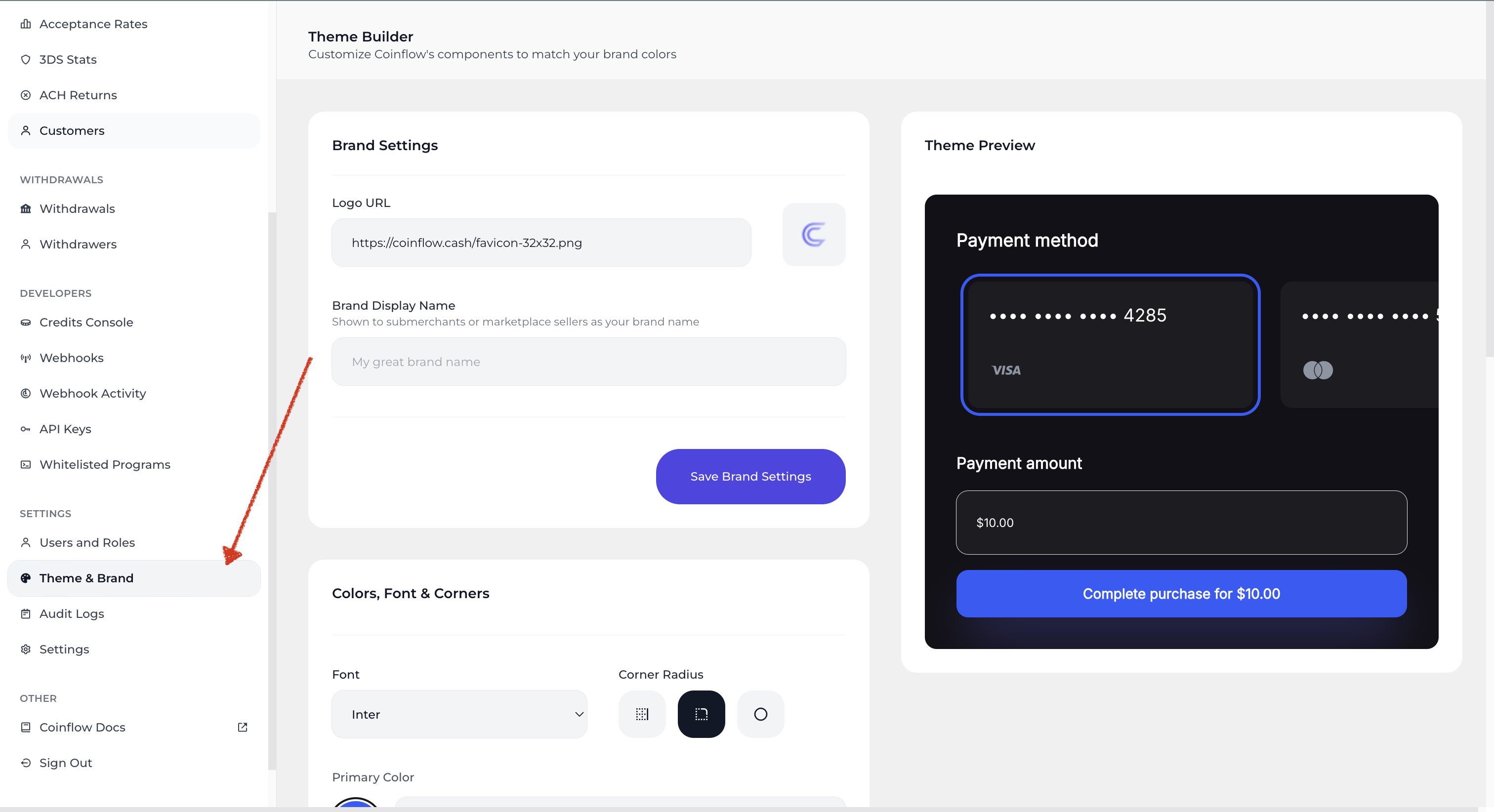
- Log in to the Merchant Dashboard and navigate to Theme & Brand.
- Change the colors on the site to match your branding.
📘 Any changes to branding will effect both Checkout and Withdraw flows
You can modify the following properties to match the look and feel of your site:
- Font - All Google fonts are supported
- Corner Style
- Colors
Example of How to pass custom theme prop
Checkout Customizations
Merchants using SDK version 4.4.0 or higher now have enhanced customization options, including the ability to:
- Add a custom support email
- Include customer information in the footer