

🔐 Login & Account Access
Learn how to access your Coinflow merchant account, set up 2FA, add team members, and troubleshoot login issues.
Reset Login Credentials
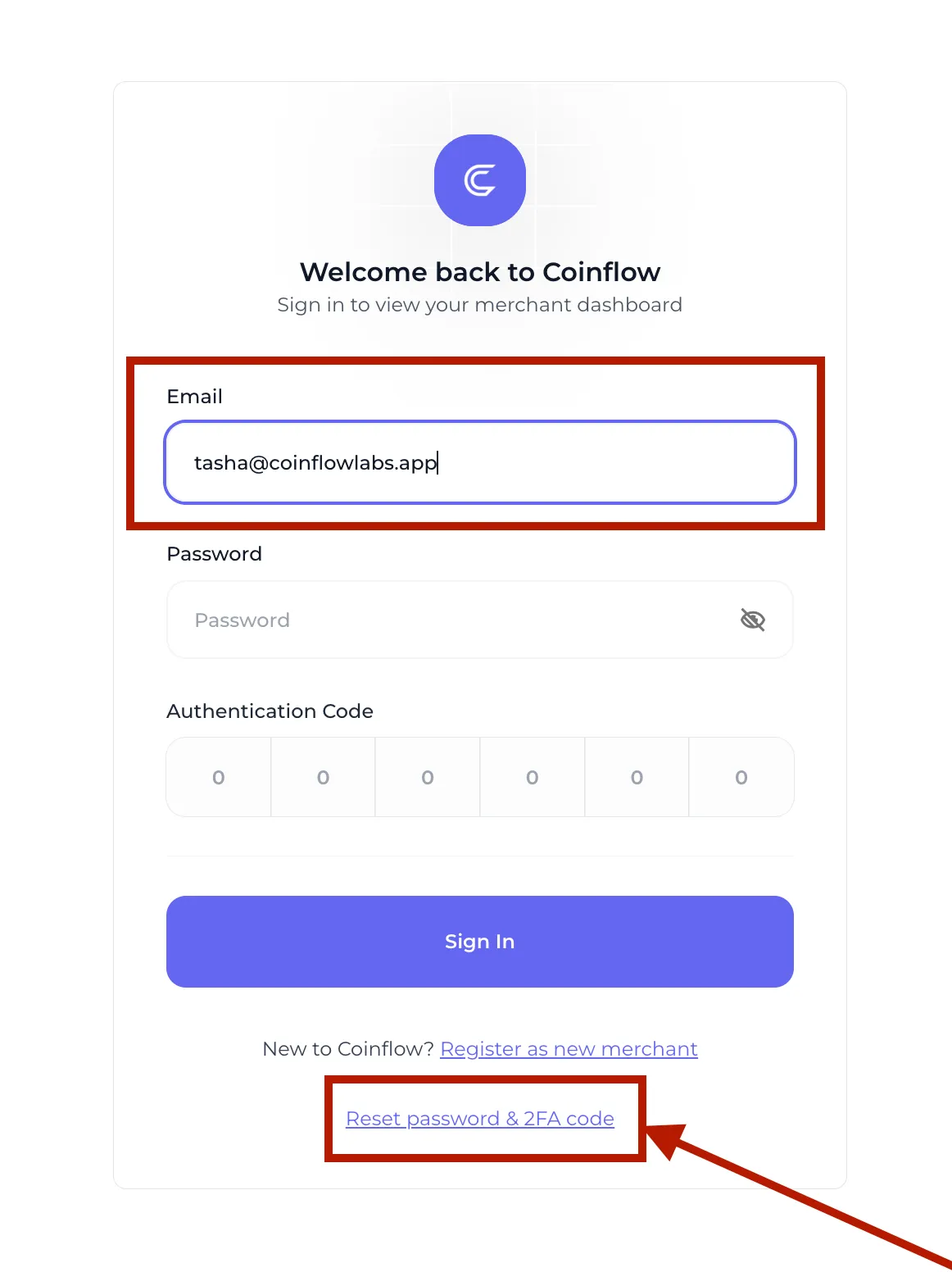
If you were added to a merchant account but can’t log in, follow these steps:
- Go to the Coinflow login page.
- Enter your email.
- Click “Reset password & 2FA code”.
- Check your email for a message from
notifications@coinflowlabs.app. - Follow the instructions to set up your password and 2FA.
First-Time Login for New Merchants
Setting Up 2FA
- Complete the merchant onboarding process.
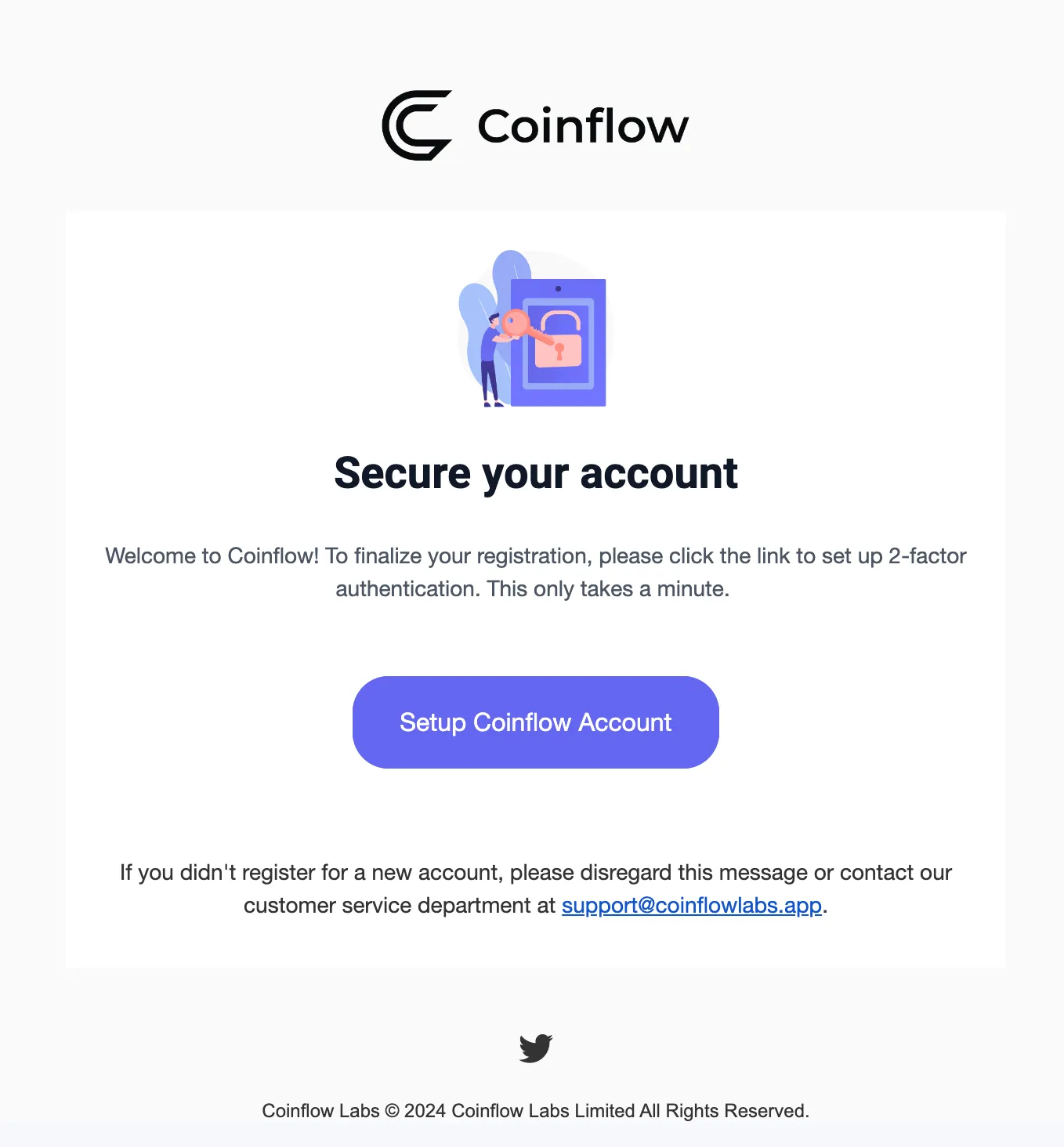
- Check your email for “Coinflow Authentication Setup” from notifications@coinflowlabs.app.
- Click “Setup Coinflow Account”.
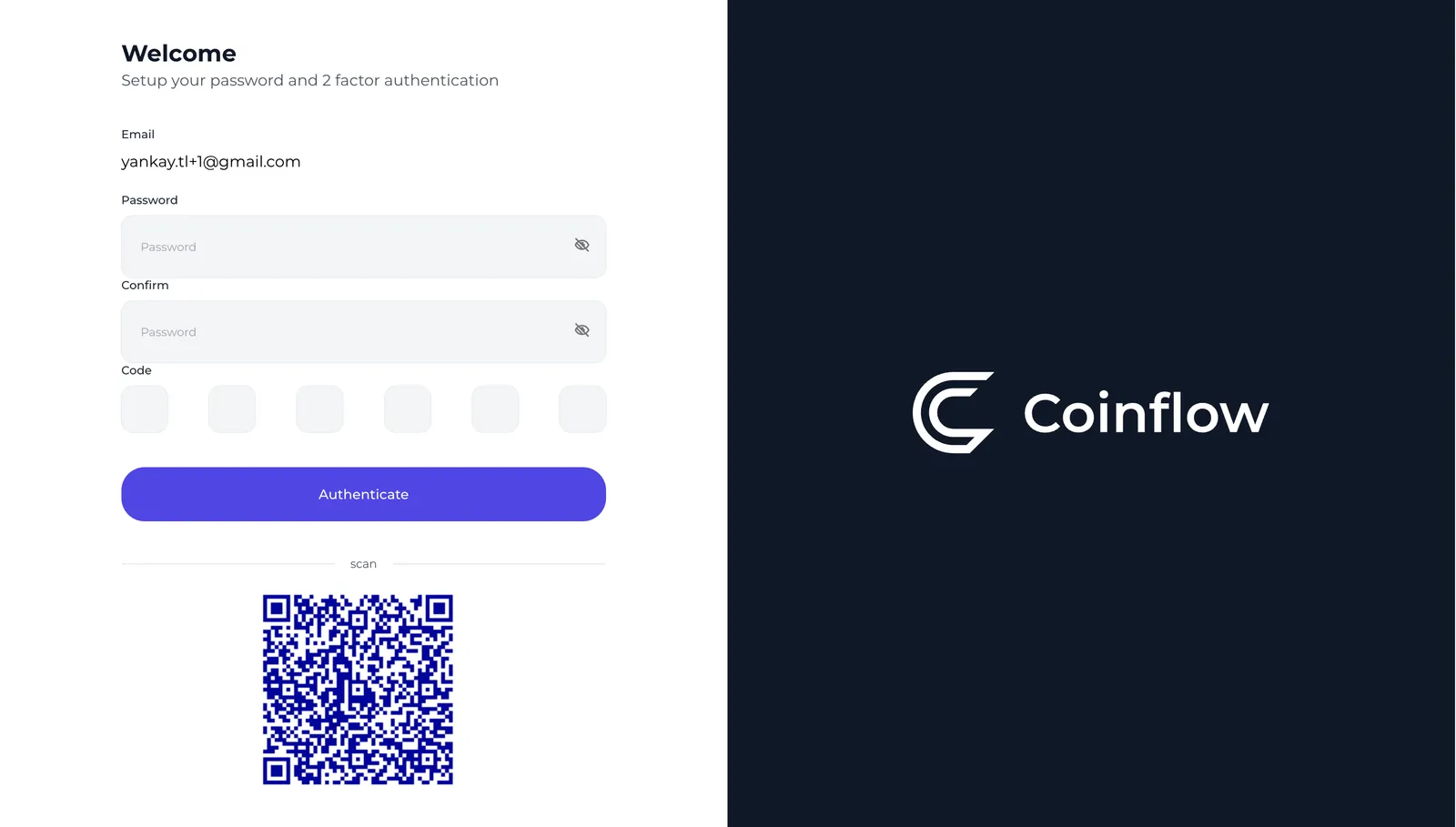
- Open Google Authenticator and scan the QR code.
- Create and confirm your password.
- Enter the 2FA code and click “Authenticate”.
- Use your email, password, and 2FA code for future logins.
Adding Team Members
If you’re the account owner, you can invite teammates to access your merchant account:
- Go to Settings > Users & Roles > Add User.
- Enter their email and choose their role.
- They will get an email titled “Coinflow Authentication Setup”.
- They need to click “Setup Coinflow Account”.
- Using Google Authenticator or 1Password, they must scan the QR code.
- They will create a password and enter the 2FA code.
- Click “Authenticate” to complete the setup.
- From now on, they must log in using their email, password, and 2FA code.
Troubleshooting Login Issues
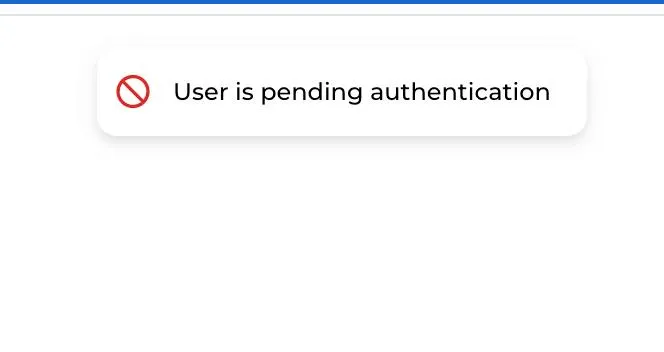
🚨 Seeing “User is pending authentication”?
This means your account setup isn’t complete. Follow the steps above to set up 2FA and a password.
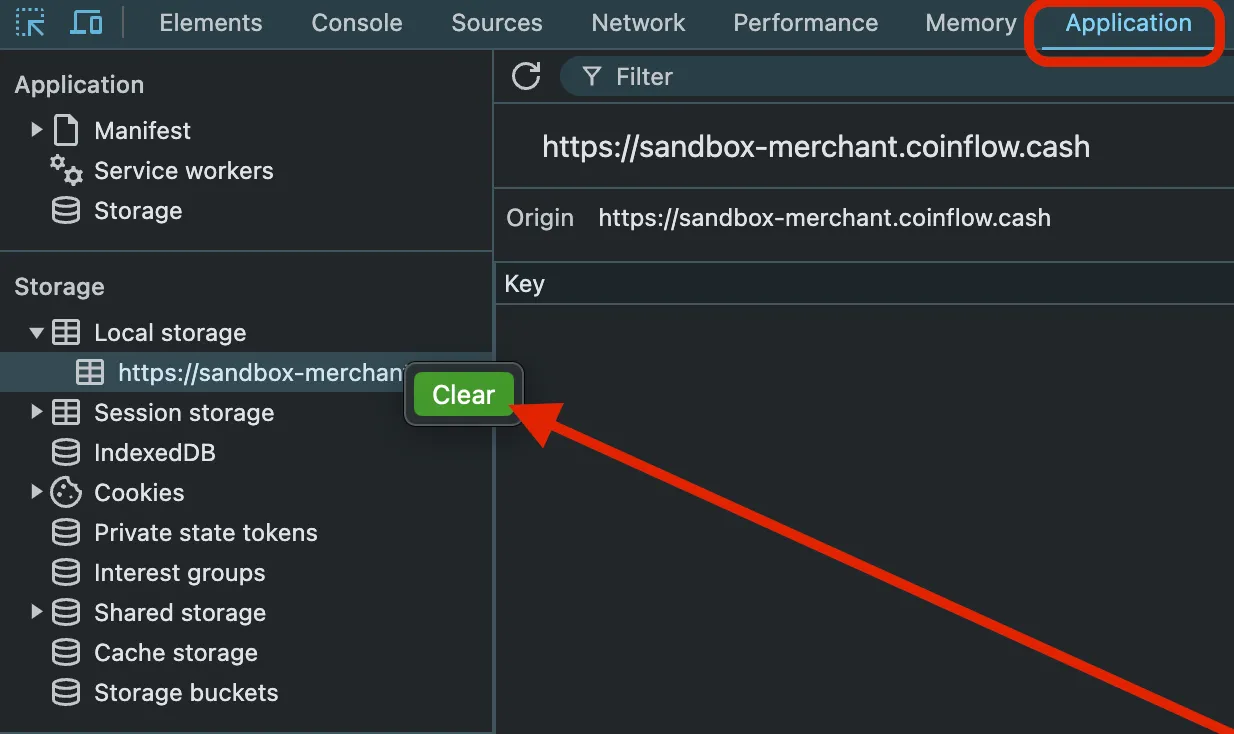
🖥️ Seeing a blank screen?
Try clearing your local storage:
🚧 The rate limit for failed merchant logins is 3 per minute!