

Bank Authentication
Overview
The Bank Authentication UI allows users to connect their bank accounts or debit cards for payouts. This prebuilt interface handles the entire authentication flow, including support for Plaid integration and card tokenization.
When to Use This Method
Separation of Concerns
This method is ideal when you want to handle bank/card linking separately from payout initiation. After users link their accounts via this UI, you can initiate payouts programmatically using the API Integration endpoints.
Implementation Steps
Generate a Session Key
Before embedding the authentication UI, you need to generate a session key for the user.
- Use the Get Session Key API to create a session key
- Session keys are valid for 30 minutes and must be refreshed after expiration
- Each session key is unique to a specific user (identified by their
customerId)
Embed the Bank Authentication Flow in an Iframe
Embed the Coinflow authentication UI in your application using an iframe. Replace the following parameters with your own values:
YOUR_MERCHANT_ID- Your Coinflow merchant identifiersessionKey- The session key generated in Step 1bankAccountLinkRedirect- URL-encoded redirect destination after successful authentication
Sandbox URL Format:
The URL path includes /solana/ as a routing identifier — this is required even for non-blockchain payouts and does not affect the user’s payout destination.
Use Production URL for Live Environment
When deploying to production, update the base URL to:
Account Linked Message
The iframe emits a message with the method field of accountLinked when authentication is successful. This is useful if you have the iframe embedded in a modal and want to close it programmatically. See this recipe to learn how to listen for the accountLinked message.
Filtering Account Types
You can control which authentication options are displayed to users by using the allowedWithdrawSpeeds URL parameter. This is useful when you want to limit users to specific payout methods.
Available Options
Examples
Allow Card and Bank Connections:
Allow Only Card Account Connections:
Allow Only Bank Connections:
FAQ / Troubleshooting
- Why is the debit card input field not loading?
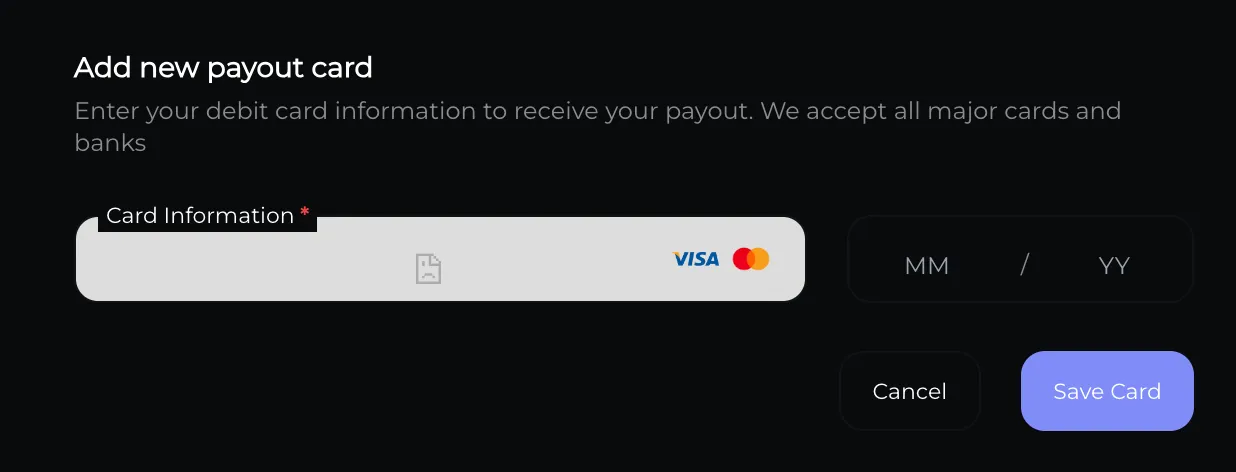
If you embed the bank auth url in an iframe and the input card number token field fails to load, try passing the origins field. Origins should be a url encoded array containing your url and any ancestors. Example: https://sandbox.coinflow.cash/solana/withdraw/YOUR_MERCHANT_ID?sessionKey=YOUR_SESSION_KEY&origins=%5B%22https%3A%2F%2Fmywebsite.com%22%5D